
Quick tour
The core Thumbsy workflow in five minutes.
This is the fastest path from "just installed" to "have a styled thumbnail export." Each step links to a deeper guide if you want more detail.
Save a thumbnail
Hover any thumbnail on YouTube — home feed, search results, a channel page, it doesn't matter — and open its menu. Click Save for later.
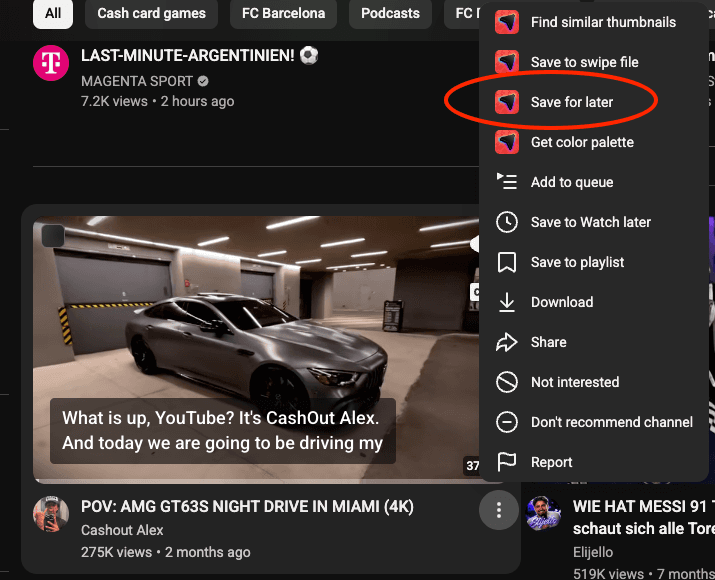
See Context menu actions for the other save options.
Pull its color palette
From the same menu, click Get color palette to see the thumbnail's dominant colors as copyable hex codes.
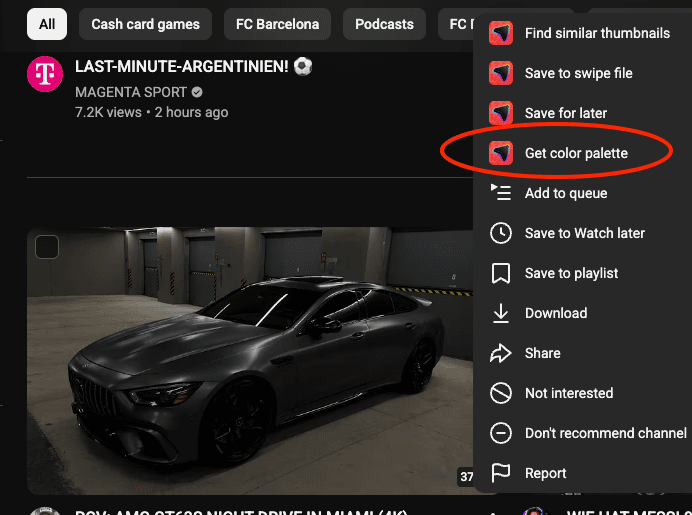
More in Color palette extraction.
Open the Studio and export a styled card
Press Alt+S (⌘+Option+S on Mac) or click the Thumbsy icon in YouTube's top bar. Pick a thumbnail, choose a background style, and click Export Showcase.
More in The Studio overlay.
Organize it in the dashboard
Open the webapp dashboard — your save is already there. Drag it into a new board to keep it organized.
TODO: add image — Dragging a thumbnail into a board in the dashboard sidebar
More in Boards.
That's the whole loop: save on YouTube, organize and export from the dashboard. Pro adds competitive research on top — see Pro features.