
Sign in
Connect your Google account to start saving thumbnails.
Thumbsy uses one account for both the extension and the webapp dashboard. You only need to sign in once.
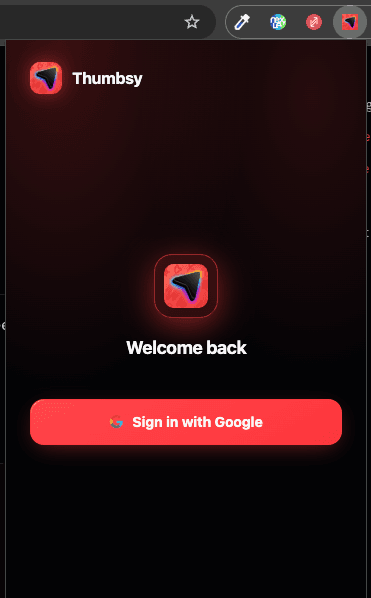
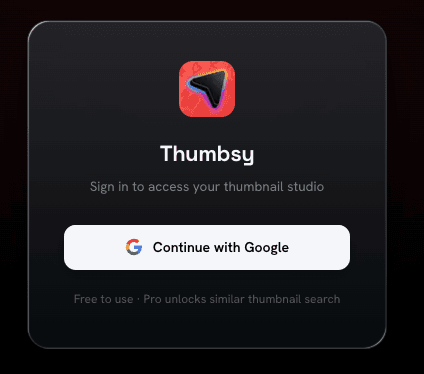
Continue with Google
Click Sign in with Google and complete the Google sign-in flow in the tab that opens.
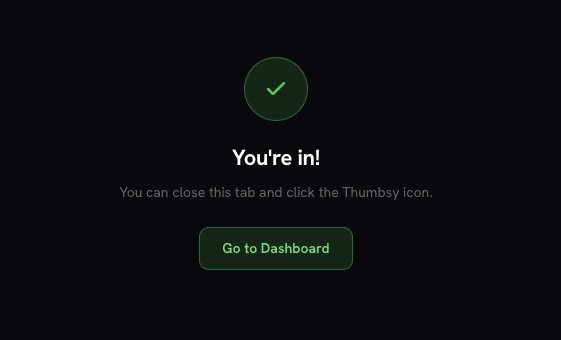
You're in
The popup shows a confirmation once sign-in completes — you can close the tab and the popup right away. Your saves are now tied to your account, and the same login works on the webapp dashboard.
Why two sessions?
The extension keeps its own session, separate from the webapp's. This means signing out of the dashboard (or rotating its session) never logs the extension out, and vice versa — your saves keep working either way.
Signing out
Open the popup and click Sign out at the bottom. This only signs the extension out; sign out of the dashboard separately from its account menu if you're using both.