
Webapp
Dashboard & library
Browse, search, and manage everything you've saved.
Everything you save from the extension shows up in your
dashboard at thumbsy.io/dashboard, sign-in shared with the extension (see
Sign in).
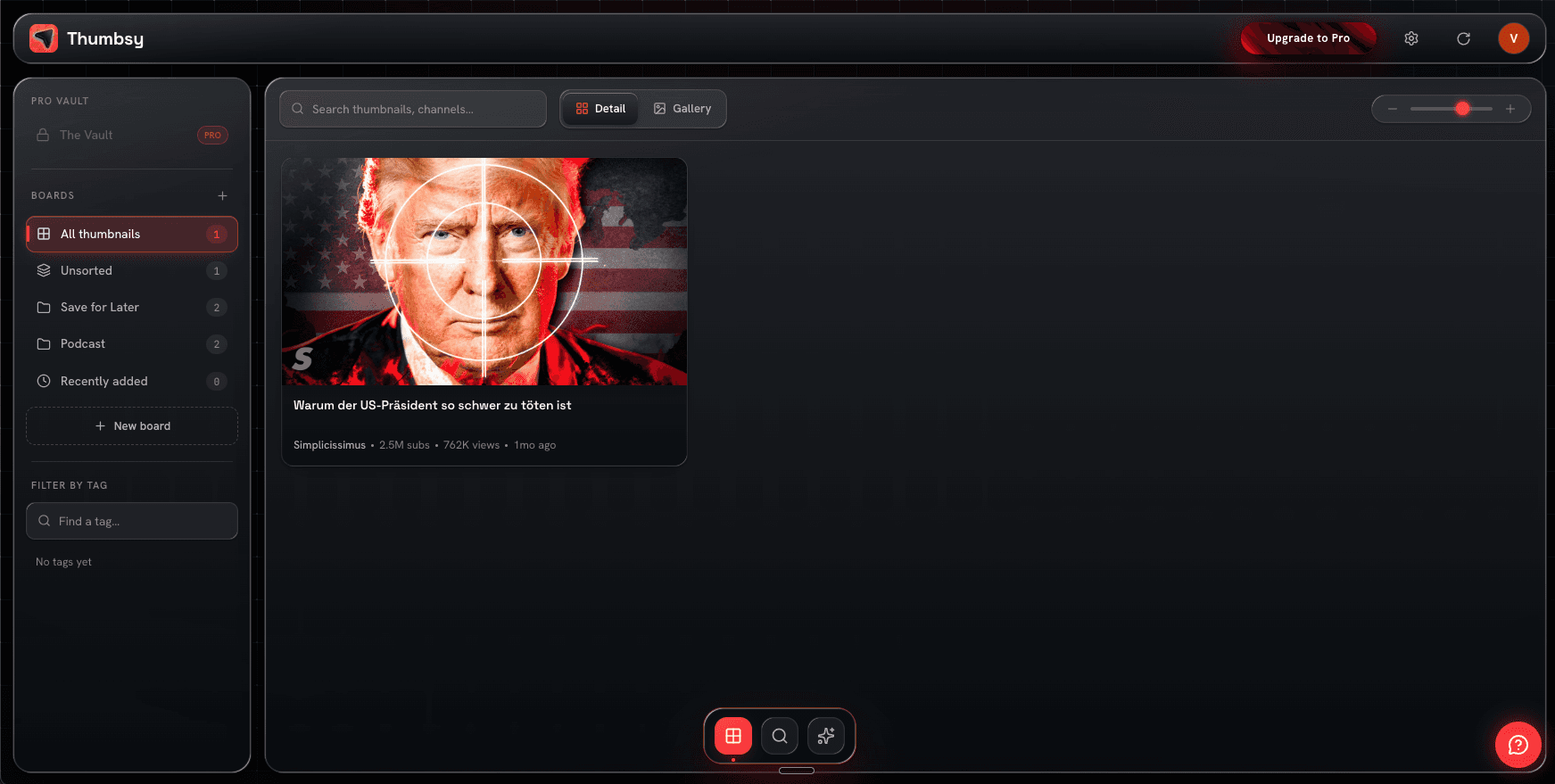
The library grid
Your saved thumbnails appear in a grid with their title, channel, save date, duration, and view count. Use the density slider to switch between a compact 4-column view and a larger, more detailed single-column view, or toggle between Gallery (image-only) and Detail (table-like) display.
Search & filter
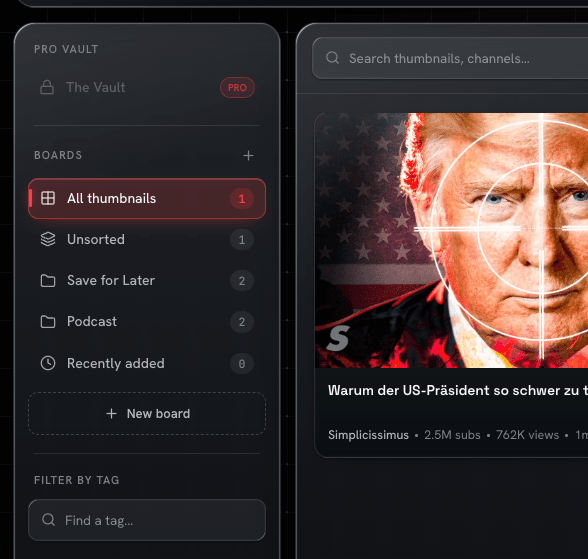
A sidebar lets you:
- Search by title or channel name, live as you type
- Filter by tag, with item counts shown per tag
- Filter by save date — All, Recently added (last 7 days), or Unsorted
- Clear all filters in one click
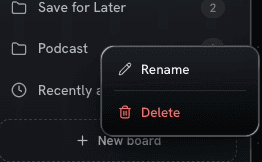
Per-thumbnail actions
Right-click any thumbnail for a quick-action menu:
- Edit — update notes, tags, and board assignments
- Export — open the export modal
- Copy link — copy the YouTube video URL
- Open — open the video on YouTube
- Fullscreen — view the thumbnail at full resolution
Selecting and bulk actions
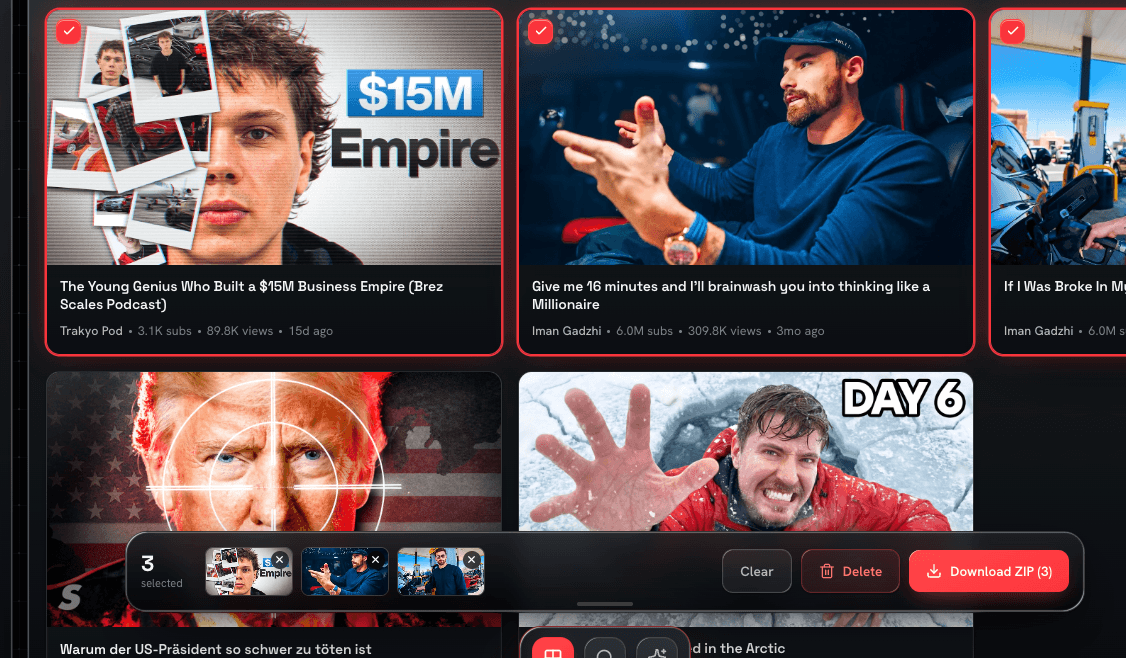
Select multiple thumbnails (click checkboxes, or drag to select a range) to bring up a floating dock at the bottom of the screen:
- Delete selected — removes them from your library, with a confirmation showing the count
- Download ZIP — downloads every selected thumbnail as a single ZIP file
Next: organize your library into boards.